

What to Look For in a GEO Service Provider Before You Sign On
Reads 588
12 Jan. 2020 - Michael Simonetti, BSc BE MTE - Total Reads 5,152

E-Commerce has become a trend setter in business and economy after the COVID-19 hit the world. Show your products on the website, advertise and sell them within the website. But how does this really happen? How a customer or a client will know about your products and services? This is when you need Google Merchant.
After setup Google Merchant for your store, you now need to upload the google shopping product feed to launch and display the products in the eCommerce market. You can manage how your in-store and online products appear on Google. The product feed is the file that includes your product list with its attributes that google needs to display, advertise and compare products.
Google merchant has two types of feeds; Primary Feeds and Supplementary Feeds. Primary feeds are the main data sources where as Supplementary includes the missing data that you might forget to include on primary feed.
Let’s dive into these steps on how to create a feed for your store.
First login to the merchant account. Go to the Products tab in the sidebar menu, click Feeds. Now Click 
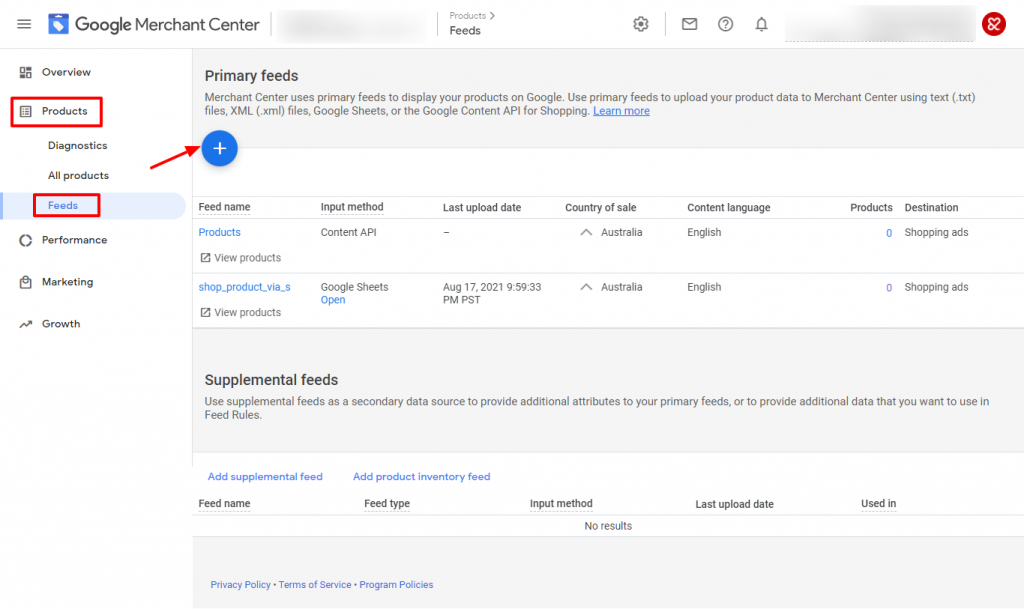
It will prompt you to the screen below. As you can see there are three tabs, namely Basic information, Name and input method and Setup. Enter the information specified in these tabs and continue to set up your feed.

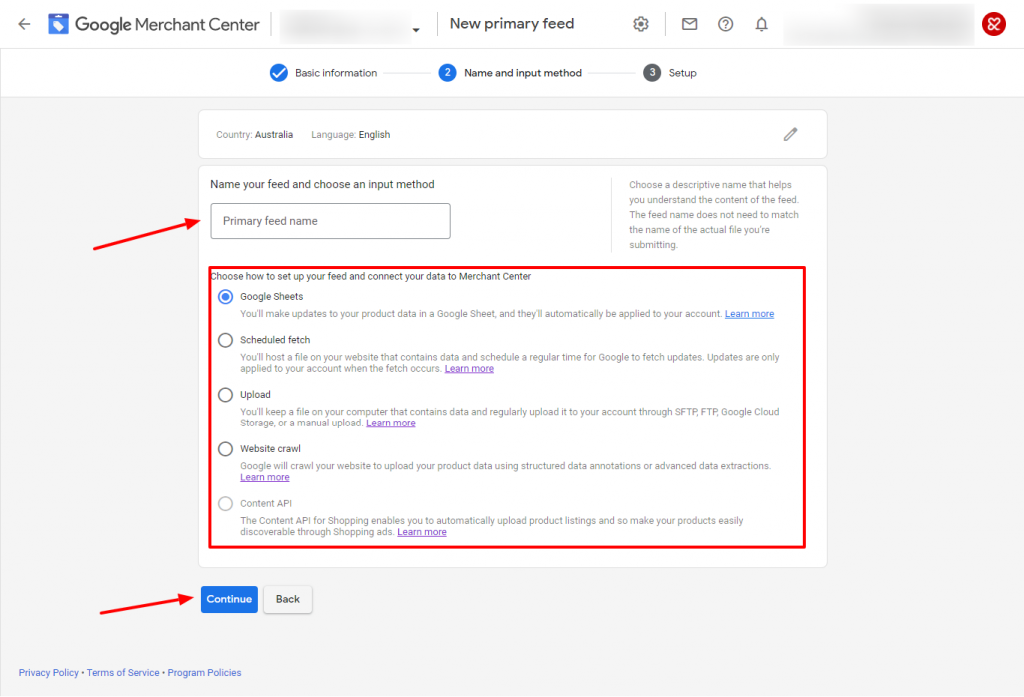
Now select any convenient method to set up or upload your feed and continue to connect.
Google merchant allows four input methods to upload the feed spreadsheet or text file, XML file and connect API. Let’s go through each method.
Google sheet
After you select the google sheet method on the above “Name and input method” tab, then you will be prompted to sign in to your Gmail account. Then select Generate a new google spreadsheet from a template and continue.

Access the google sheet which includes required information titles to put the values.
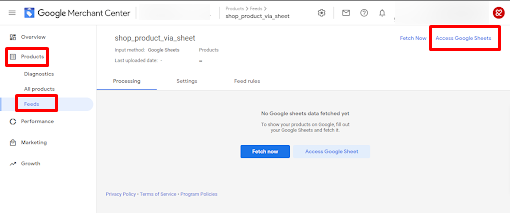
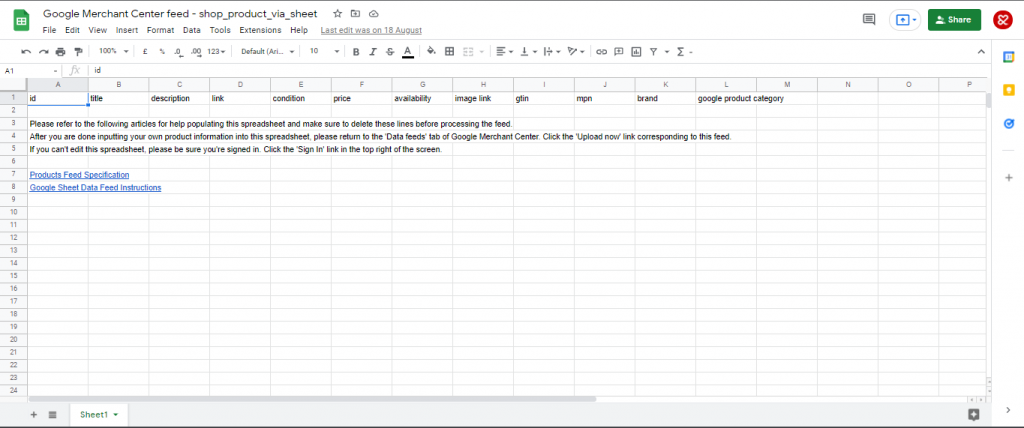
Now, go to your eCommerce shopping website and extract all the product information in a spreadsheet. If your eCommerce website is Shopify then, go to all products and export as CSV for excel.

Under the product feed of the merchant centre, you will find the link for the google sheet which includes required titles and attributes.
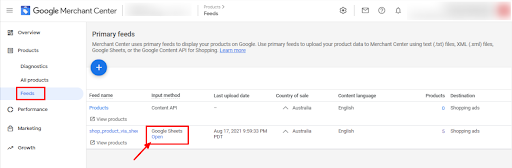
Compare the titles of your spreadsheet and merchant template sheet. Now paste information on the respective columns. Complete the sheet and fetch the feed from Google Merchant.
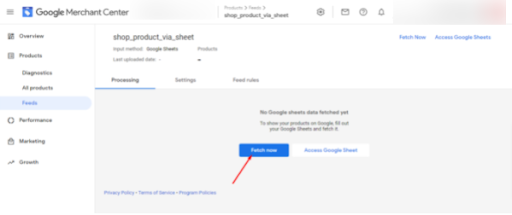
Now go to the settings tab, under the fetch schedule, adjust your fetch schedule, time and zone as needed and save it.
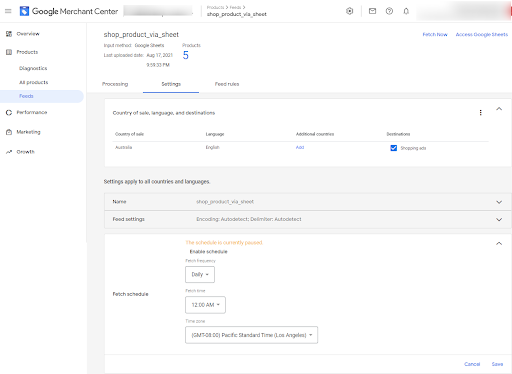
Now your feed is ready and can be optimised and diagnosed for the disapproved product items.
Scheduled Fetch
If you do not want to use Google Sheet method, Google merchant center also allows you to create an uploading schedule for product feed hosted on the website. According to the fetch schedule, it will upload the file from the website.
Select schedule fetch input method like we did earlier for google sheets input method.

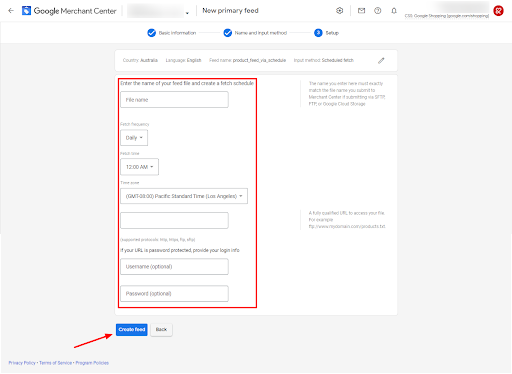
You will be prompted to complete the next step. Enter the information; Feed file name, fetch frequency, time and zone, file URL (the URL protocols can be http, https, ftp and sftp) and login info of your file URL to create the feed.
Upload
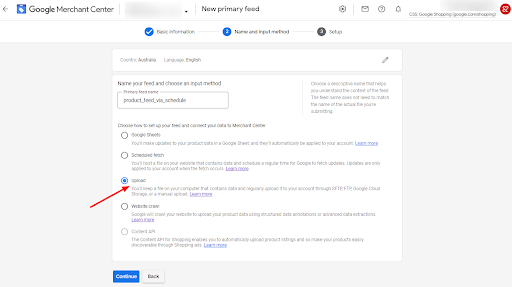
Merchants who have few products or rarely make any adjustments on the feed then this method is best for them. It is easy and doesn’t need many requirements.
Select upload input method and continue which will take you to the next step to upload your file.
Export the product from your eCommerce website and save it on a local computer. Now drag or browse files to the Merchant Centre. Keep in mind that the maximum file size limit is 4 GB. A file size more than 4 GB cannot be uploaded.
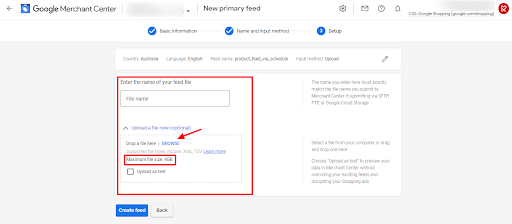
Enter the file name exactly as the file you uploaded. Then click Create Feed.
Upload feed file via FTP
For the merchants who manage large inventory and need frequent updates on the product, it is recommended to use this method.
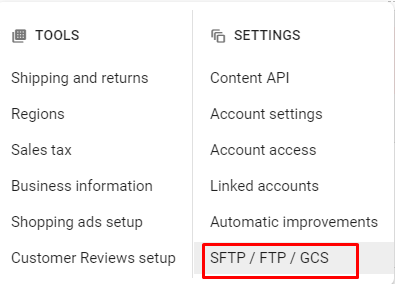
To upload the feed via FTP, you need to create a FTP account. Go to the settings of the merchant center and click SFTP/FTP/GCS. Select SFTP/FTP tab and create FTP account but SFTP is recommended as it is more secure. Your FTP username will be generated automatically. Click Generate Password to generate the password and enable the account.

Now enter the data feed using FTP program. Download the FTP client, Filezilla for Windows on your computer. Configure the settings to connect with Google merchant FTP server. The FTP client program will need the following settings:
Hostname: uploads.google.com
Username and password can be found on Google Merchant FTP where you generated the user and password.
Log on type must be normal and not anonymous.
Now, the next step is to optimize the product feed. If the product data are not optimized, values unmatched and missing attributes, then it might cost against you which we will learn in the next article in andmine.com
Go on, see if you can challenge us on "How To Add eCommerce Shopping Feeds To Google Merchant" - Part of our 184 services at AndMine. We are quick to respond but if you want to go direct, test us during office hours.
Add Your CommentWe decided to make the commitment and drop Traditional Marketing like Yellow pages and trial AndMine's Website Development, Design and Email Marketing Services. We never looked back and business is always booming. We certainly would not have been able to grow our business to where it is today without AndMine. Monika & Ellen, The Depskin Centre
More Testimonials